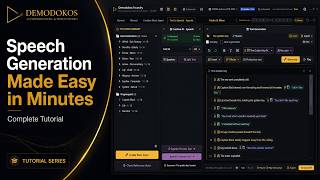
Written Tutorial
Prefer to read? The same walkthrough, step by step.
What you will build
In this tutorial you generate your first AI music track with Demodokos Foundry and learn how to use the Creative AI Agent. Everything runs locally on your own computer.
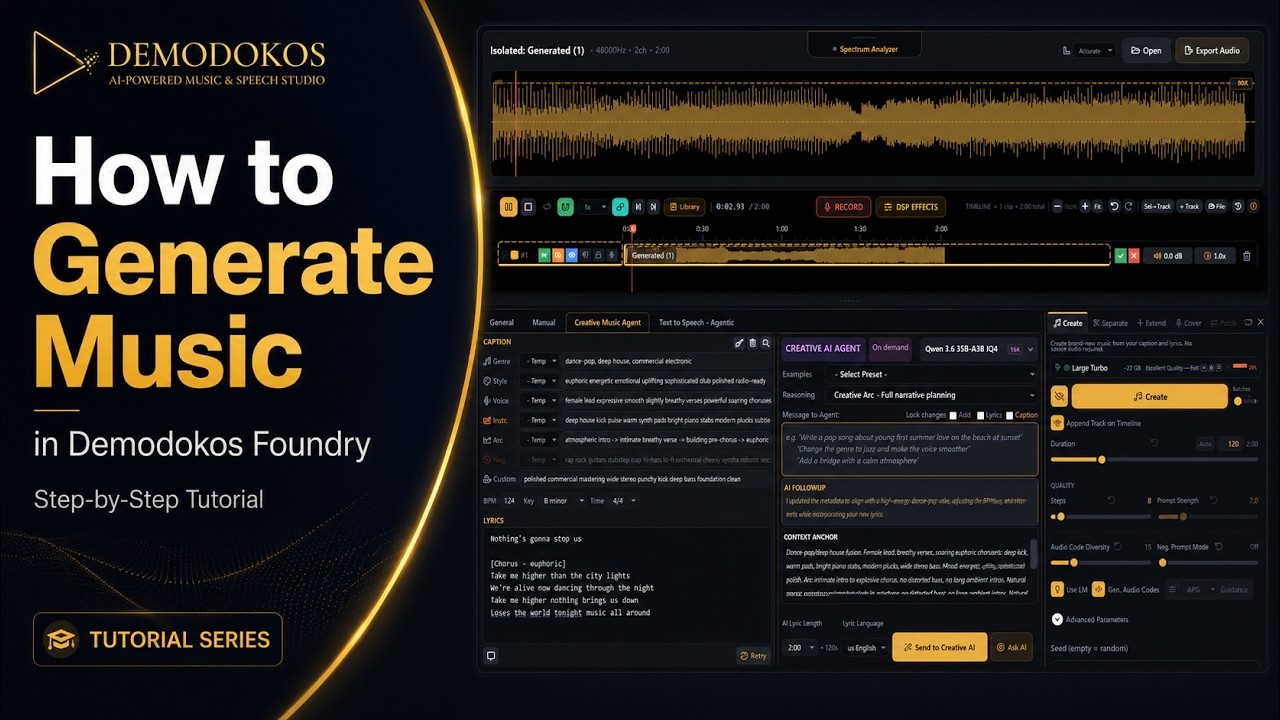
1. Open the Creative Music Agent
On the left you will see the Caption section. This contains the musical instructions and the lyrics that guide the generation.
You can fill in these fields manually, but why do all the work yourself when the Creative AI Agent can prepare them for you?
2. Check the agent settings
Before you begin, take a quick look at the agent settings.
Creative AI model. You can choose between different Creative AI models. Smaller models use fewer computer resources and may run faster. Larger models may provide stronger planning and writing, but they also require more VRAM, memory, and storage space. Choose the model that works best for your computer.
Reasoning level. This controls how much thinking the agent applies to your request. For a simple music caption, a lower reasoning level may be enough. For a complete track with detailed lyrics and structure, we recommend choosing a higher reasoning level.
3. Describe the track you want
Give the agent a clear description of the music you have in mind. Here is the prompt used in the video:
Create a vibrant sunset beach Electro Afro House track with organic African percussion, a deep punchy kick, a rolling bassline, bright electronic synths, airy vocal textures, warm piano chords, and a hypnotic marimba-inspired melody. Build a tropical, euphoric atmosphere that feels like dancing barefoot on the beach as the sun goes down. Keep it energetic, polished, and uplifting, with a powerful festival-ready drop that never becomes harsh or aggressive. Write catchy, rhythmic lyrics in Swahili about freedom, summer, dancing, and the beauty of the sunset.
The more specific you are about instruments, energy, atmosphere, and lyrical theme, the closer the result will be to what you imagined.
4. Set the lyrics length and language
Choose the desired lyrics length, then select your language from the language menu. The example prompt asks for Swahili lyrics, so Swahili is selected in the menu as well.
5. Let the agent plan the track
Now let the agent plan the track. When it finishes, you can adjust the caption and lyrics manually, or ask the agent to make changes for you.
6. Move to the Creation tab
Once you are happy with the plan, move to the Creation tab on the right. This is where you generate the track, create cover images, separate stems, and access additional production tools.
Demodokos automatically downloads a music model suited to your computer. If you have enough VRAM and storage space, you can download additional models from the Package Manager. Different models may offer better quality or faster generation, depending on your hardware.
7. Generate your track
Set the batch count to two so Foundry generates two tracks at the same time. This gives you two different versions to compare, so you can pick the one you like best.
From here you can continue adjusting the caption, change the lyrics, or ask the Creative AI Agent to create another variation.
Useful tips
- Instrumental tracks. When you want music without vocals or lyrics, enable the Instrumental option. This tells the generator to create an instrumental track.
- Lyrics in another language. Mention the language in your prompt and select the same language from the menu. Doing both gives the agent clearer instructions.
- Not satisfied with the caption or lyrics? Try another Creative AI model, increase the reasoning level, or adjust the context size. The context size controls how much information the agent can consider while working on your request.
Music generation settings
In the Creation tab you can also adjust how the track itself is generated.
Prompt Strength controls how closely the generated track follows your caption. A higher value follows your instructions more closely, while a lower value gives the model more creative freedom.
Steps control how many refinement passes the model uses during generation. More steps may improve detail and consistency, but they also increase the generation time.
Now it is your turn
Open Demodokos, describe the music you want to create, and start generating AI music locally on your own computer.